
AI Face Aging - Photo Editor review
 Analysis by GetAllApps
I approached AI Face Aging - Photo Editor as a focused tool for turning a portrait into an age-transformed image, rather than as a full photography studio. That distinction matters. If you want to experiment with how a face might look older, the idea is appealing; if you need careful retouching, layered edits, or precise control over every detail, a dedicated photo editor is likely a better fit. My overall impression is that this app is most useful when you treat it as a quick creative experiment and choose your source photo thoughtfully.
Start with a portrait that gives the effect a fair chance
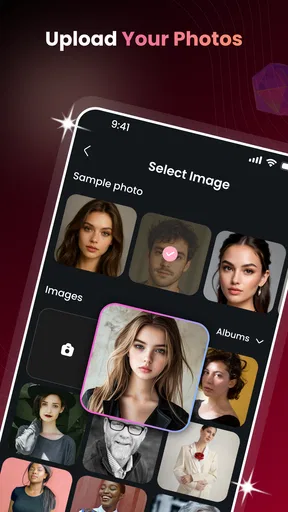
The basic workflow is easy to understand: pick a face photo, apply the aging treatment, then decide whether the result is worth keeping or sharing. The app’s purpose is narrow, which helps it feel approachable for someone who does not want to learn a complicated editing interface. I would start with a clear, front-facing portrait in even light. A face that is small in the frame, turned sharply to one side, or partly hidden gives an automated effect less to work with, so the result may look less convincing.
For a useful first test, choose a photo where the face is unobstructed and the expression is relaxed. Avoid sunglasses, heavy shadows across the eyes, or a hand covering part of the cheek. These are not special requirements so much as sensible ways to reduce ambiguity in a face-focused edit. If the first result looks odd, I would try a different portrait before concluding that the effect itself is poor.
That photo-selection step is an easy one to overlook. People often judge an effect using a casual snapshot taken at an awkward angle, then expect the same result they would get from a clean portrait. I find it more useful to keep one well-lit image as a reference and compare other attempts against it. This gives you a better sense of whether differences come from the source photo or from the transformation.
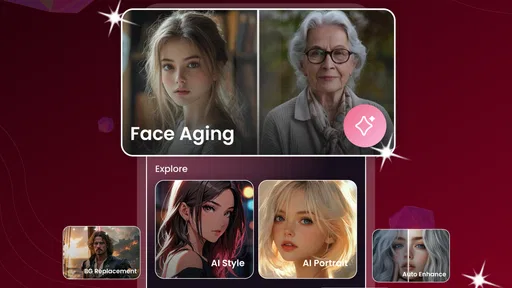
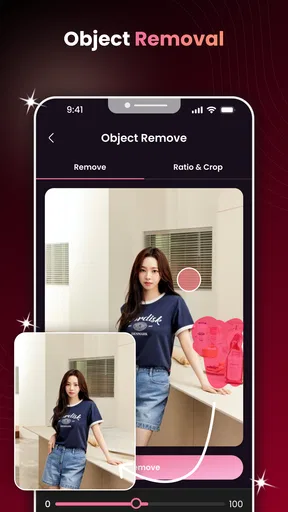
The app is a photography app from Willson Studio. Its short store description calls it AI Face Aging, and that is a better guide to its scope than the broader phrase “photo editor” might suggest. I would not open it expecting a complete set of tools for color correction, background cleanup, or detailed portrait retouching. Its appeal is the age-effect idea, not an all-purpose editing workflow.
Make your first comparison useful
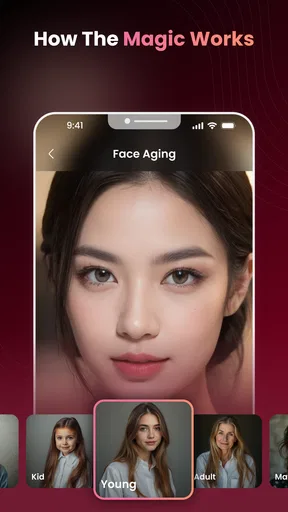
When testing the effect, keep the original image available and compare the two side by side. Look first at the overall impression: does the transformed face still resemble the person, and does the age change feel coherent? Then inspect the details that are easiest to notice, such as the eyes, mouth, hairline, and edges of the face. A dramatic result can be entertaining while still looking artificial when examined closely.
This is also a good way to decide whether an image is suitable for sharing. A playful transformation can work well in a group chat even if it would not pass as a realistic portrait. For a profile picture, family keepsake, or anything meant to look natural, I would be more demanding and reject results where facial details seem inconsistent. The right standard depends on the purpose, not just on whether the effect is striking.
One practical habit is to test a few different source portraits rather than repeatedly trying to rescue one difficult shot. For instance, a well-lit photo taken near a window may give you a cleaner comparison than a dim indoor snapshot. If you are making a lighthearted image for a friend, the best result may simply be the one that preserves their recognizable expression. The point is to choose for the intended use, not to chase the most extreme transformation.
Check the choices before settling on a result
Before making an edit, I would take a moment to look at the available controls and the selected image rather than tapping through on autopilot. I can’t assume every screen or control is the same across devices, so the safest advice is to judge what is actually presented in your version. Pay attention to any visible options that affect the look, and make one change at a time if the app offers them. That makes it easier to understand what improved or weakened the image.
It is tempting to treat a one-tap AI effect as a guaranteed result. In practice, the source portrait still does a lot of the work. A centered face with balanced lighting is a sensible starting point; strong backlighting, a busy foreground, or a face partly outside the frame can make the output harder to assess. If the app offers a choice of photos, take that choice seriously rather than relying on the first image in your camera roll.
For repeatable results, I would also keep a small mental checklist: face visible, expression clear, lighting reasonably even, and no important facial features hidden. This is not a secret setting or a special mode; it is simply a way to avoid wasting time on poor inputs. Once you know which kinds of portraits tend to work for your own camera and lighting, you can reach a usable result with fewer trial-and-error attempts.
If you are editing a picture of someone else, consider whether they would be comfortable with the transformation being shared. An age effect can be funny, but it can also make a person feel self-conscious if posted without asking. I would keep the experiment private until the subject has seen it, especially when the result is unflattering or intentionally exaggerated. That small courtesy matters more than squeezing out one extra variation.
Build a faster, repeatable routine
The quickest approach is not necessarily to edit faster; it is to avoid unnecessary retries. I would begin with the cleanest portrait available, apply the effect once, and inspect the result at a comfortable size. If it misses the mark, change the source photo before making another attempt. That simple sequence helps separate an input problem from an effect that just does not suit the image.
For a set of portraits, use the same selection criteria each time instead of switching between very different lighting and angles. That will not guarantee identical results, but it makes comparisons more meaningful. A useful everyday example is preparing a playful set of images for a family gathering: choose similarly framed portraits, check each transformed image for recognizable features, and keep only the versions that remain clear at the size people will actually view them.
I would also decide what “finished” means before starting. If the goal is a joke to share with a friend, a slightly uncanny result may be part of the fun. If the goal is a polished keepsake, the standard should be stricter, and you may be better off using a photo editor that gives you more direct control. Matching the tool to the purpose saves time and prevents disappointment.
The app is free, which makes it easy to try without committing to a purchase. It has a 4.0 average from around 6,500 ratings, and has been installed over 5 million times. Those figures suggest that plenty of people are curious about the concept, but they do not tell me whether a particular portrait will produce a convincing edit. I would treat them as context, not as a promise about your results.
Where the effect has limits
Automated face transformations have a particular weakness: an image can look plausible at a glance but less natural when you zoom in or compare it with the original. If facial structure shifts in a way that no longer looks like the subject, the result may be entertaining but not useful as a realistic edit. That is why I would avoid using the output as a substitute for a carefully retouched portrait or any image where accuracy matters.
There is also a trade-off between convenience and control. A focused aging tool can be quicker to approach than a general editor, but a general editor is usually the better choice when you need to adjust exposure, repair a distracting background, crop precisely, or refine a specific part of the face. For a single playful transformation, a specialist tool makes sense. For a finished photo with several corrections, I would move to a broader editor instead of expecting this app to do everything.
It is not the right choice if your main goal is to compare many finely controlled age variations or to create a consistent set of professionally polished portraits. I would also skip it when the source image is low quality and cannot be replaced; a weak photo tends to limit what any automated treatment can do. In those situations, finding a sharper portrait or choosing a manual editing workflow is more likely to help than repeating the same transformation.
The app is rated for Everyone, and its current version is 1.1.1, with a minimum operating system requirement of 8.0. It was released on February 3, 2026. For an everyday user, the practical point is simply to check that the device meets the system requirement before trying it and to remember that an update can change how an app looks or behaves. Willson Studio is the developer behind it.
Choose the right tool for the job
Compared with a standard photo editor, this app is more specialized: it puts the age-transformation concept first rather than asking you to assemble the effect manually. That makes it appealing when you want a quick novelty image and do not want to learn a long editing process. The usual alternative, a general-purpose editor, is more flexible but may demand more decisions and time. Neither is universally better; the deciding question is whether you value a focused effect or fine-grained control.
Compared with simply using an unedited portrait, the transformed image is best thought of as a creative variation, not a prediction of how someone will truly look in the future. That distinction keeps expectations sensible. Facial aging is personal and complex, and a generated image is an interpretation of a photograph rather than a dependable forecast. I would enjoy the result as visual play, not use it to make serious assumptions about appearance.
In everyday use, I would open AI Face Aging - Photo Editor when I have a clear portrait and want a quick, shareable experiment. I would choose another app when the job requires careful corrections, a natural finished portrait, or precise control over individual features. That boundary is the most useful thing to know before installing it: the narrower purpose is a strength when it matches your task and a limitation when it does not.
My verdict after weighing the workflow
AI Face Aging - Photo Editor is an approachable option for a specific kind of curiosity: seeing a portrait transformed with an aging effect without turning the task into a full editing project. I like the idea most when the source image is clean, the goal is playful, and the user is happy to judge the result rather than expect perfection. The free price lowers the barrier to trying it, while the focused scope keeps expectations clear.
My best advice is to make the first photo count, compare the outcome with the original, and stop when the result serves its purpose. Do not keep pushing a poor source image toward a polished result it cannot support. For a quick laugh or a casual conversation starter, that is a reasonable workflow. For a convincing portrait or a serious before-and-after project, I would choose a more controllable tool.
In short, I would recommend it to someone who wants an easy age-effect experiment and understands that an automated transformation can look more playful than realistic. I would steer a detail-focused photographer toward a broader editor instead. If you approach it with the right photo and a modest goal, it can be a fun addition to your photo tools without pretending to replace them.
Pros and cons
Pros
- Quickly creates aging effects from a single photo.
- Simple controls make the editor easy for beginners.
- Results are easy to save and share.
- Useful for playful transformations with friends.
- The aging preview provides an entertaining way to imagine future looks.
Cons
- Results may vary depending on photo quality and lighting.
- Some effects may look unrealistic on certain faces.
- The app may require an internet connection for some features.
- Advertisements can interrupt the editing experience.
- Photo permissions may be needed to import and save images.


